Last updated: 28/08/2026
Documentation outdated
This section is partially outdated. The current version of the platform organises imports with revisions to enable updates for 'living' maps or reviews. Please get in contact if you would be interested in properly documenting and updating this section.
Loading data into the platform⚓︎
Never run more than one import at a time
You should never run more than one import at a time. The system has to keep track of duplicates, which is really inefficient to do across multiple simultaneously running imports. Unfortunately, the system will not prevent you from doing this, so you have to start each import only after the previous one is completed successfully.
If you have many imports to run, you can set things up and use this script to automatically and sequentially initate imports.
Introduction⚓︎
Importing references –including abstracts– into NACSOS can take place in various ways, some automated, some requiring downloading files from the respective platforms.
Note that we cannot implement imports for every kind of data source. The three databases are covered explicitly (OpenAlex, Scopus, Web of Science). A generic import exists.
Import procedures for the most common platforms and generic import:
For PubMed, LexisNexis, backend API connections are available on request. Before making a request, please note that many formats are already available in the command line tool.
Good to know⚓︎
- Never run more than one import at a time
- Put in the full query in the description, where and when you ran it last and how much it returned
- Ingesting and deduplicating large imports might take significant time (minutes to hours), so let - the platform do its work
- Write an informative name and description of the import. The name usually contains the source and date of the import as well as further iterations. The description can be used to display the respective query
- Deduplication is a tricky balance between false negatives and false positives, i.e., not deduplicating actual duplicates and deduplicating distinct items. NACSOS adds meta data of deduplicated items to the deduplicated entry. As NACSOS keeps all this meta data for all items, avoid deleting and re-uploading additional imports as this might mess with deduplication. Furthermore, as NACSOS only adds additional items after deduplication, the number of items imported might be lower than what was expected.
- The quality and prevalence of imports can vary depending on its source. For instance, OpenAlex has been known to contain fewer and fewer abstracts. We therefore recommend using a certain sequence of imports, starting with the best quality data. This means starting with Web of Science or Scopus and then importing OpenAlex and other sources.
- In the data import and query manager, the platform indicates whether it is ready for another import or whether it is busy processing.
- If you get errors while importing, re-starting imports (re-clicking on the same button) often does not work and overloads the platform. If this is the case, and you can not comprehend the error message, you are welcome to ask for help

Import screens⚓︎
Main view⚓︎
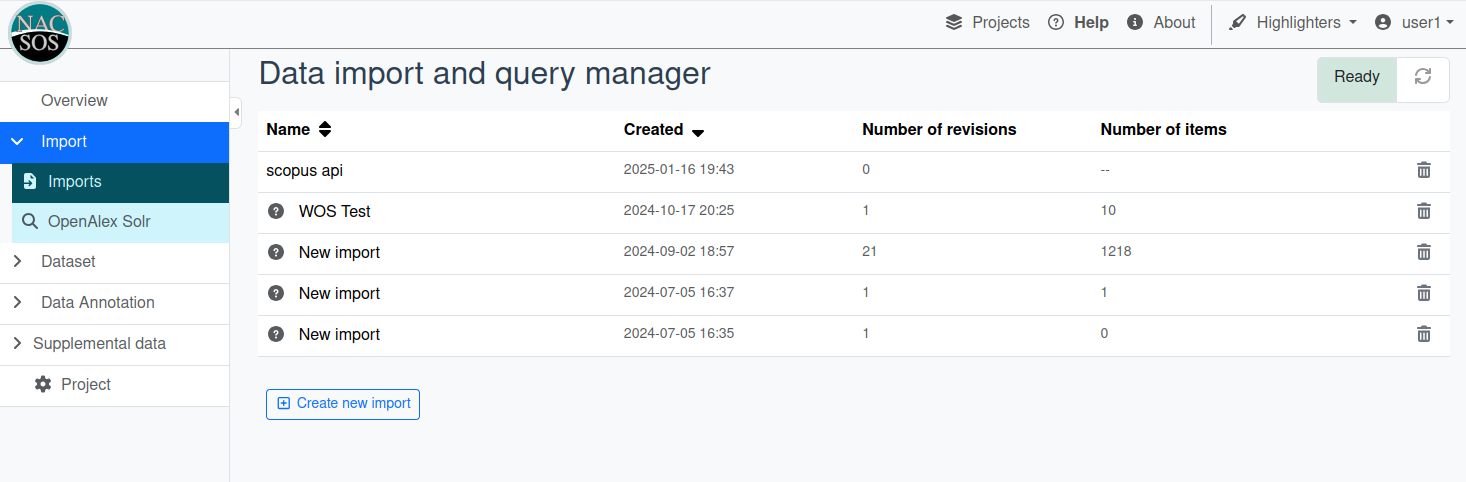
In the main view, you see the list of all imports and can create new ones. A row in the table shows the name, when it was created, number of revisions, and number of items1. You can also delete the import in this view 2. Below the table, you'll find the button to create a new import.
Mutex⚓︎
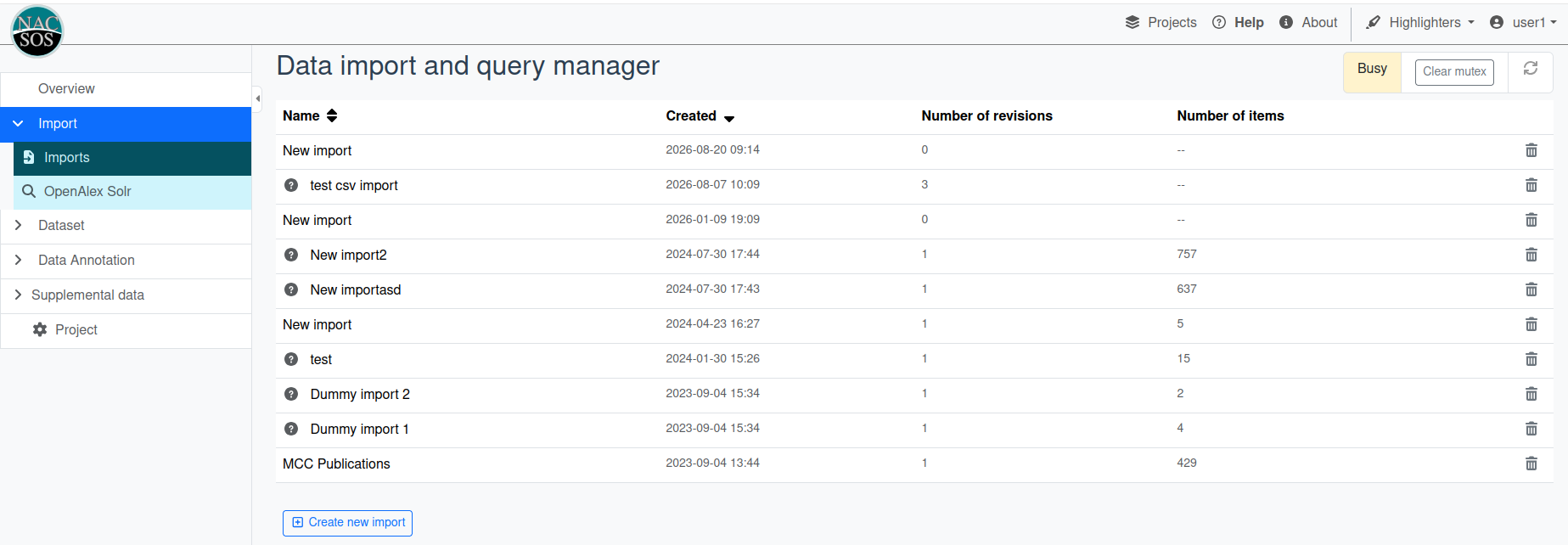
You can see the availability of the platform on the top-right corner of the screen. The right-most refresh button lets you update the status.
States:
- Ready: you can run another import
- Busy: import is running or failed
NEVER click 'clear mutex' button unless you have a very good understanding of inner workings of the platform 3.
Create new import⚓︎
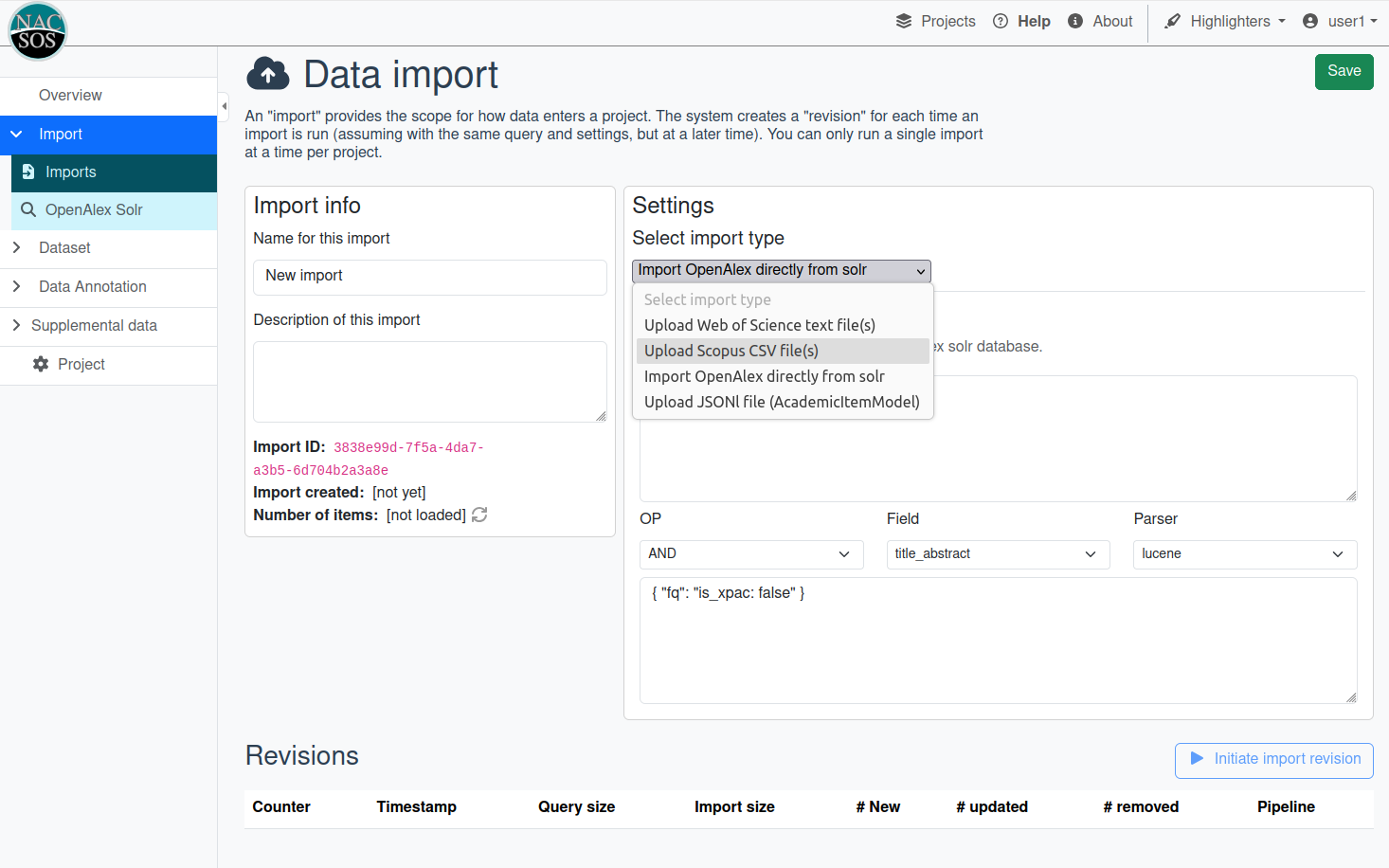
When creating a new import, make sure to always set a descriptive name and text. It may seem redundant at first, but it is greatly useful later on. The description (and or title) usually contains title, when the data was retrieved and from where. If you have multiple (sub-)queries across imports, it may also help to provide a brief higher-level description.
Before 'initiating an import', always save first!!
Below, you can select an import type.
The nacsos_data library currently supports imports from
- Web of Science "Plain text file" exports
- Scopus CSV exports
- OpenAlex
- Import directly from solr with query
- Import from OpenAlex file in API or solr format (not via web interface, via command line tool)
- LexisNexis API responses (not via web interface, via command line tool)
- Native JSONl: you can upload files that are already in the correct format of
AcademicItemModel. - Import generic items (not via web interface, via command line tool)
File uploads⚓︎
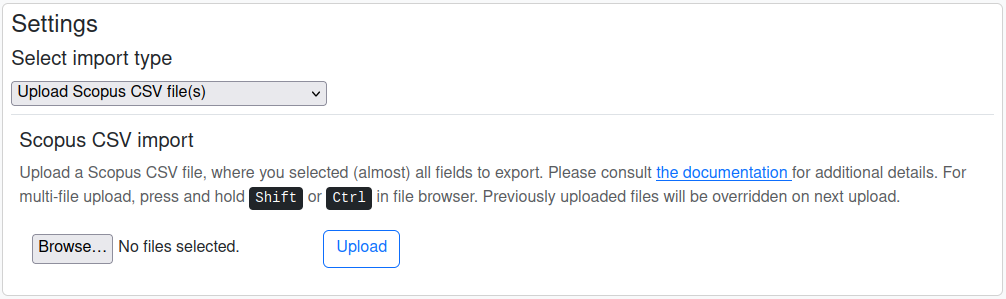
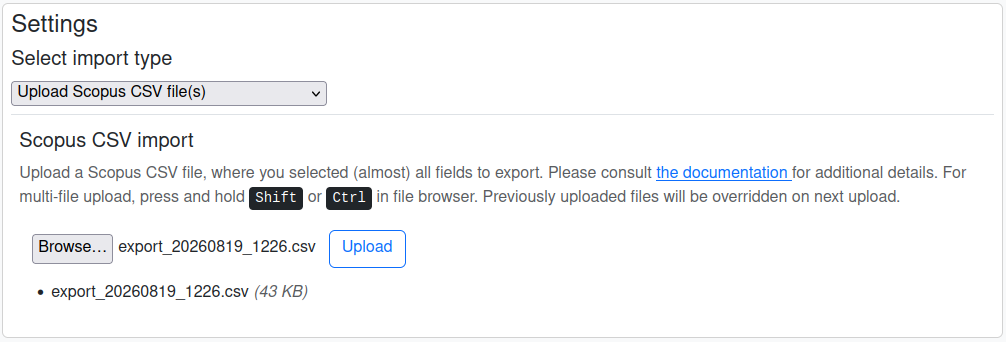
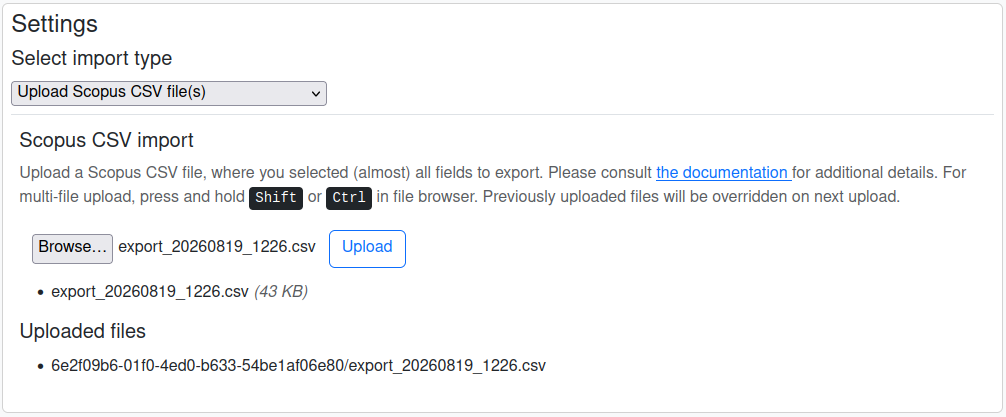
For imports where you need to upload files, the import procedure is as follows (see screenshots):
- Fill title/description
- Choose import type (scopus or wos) from the dropdown
- Click "Choose files" and select the file from your computer
- Click "Upload"
- Click "Save" (top right)
- Click "Initiate import"
Not following this order may cause a lot of issues!
Clicking the 'initiate import revision' button more than once or before fully completing the form and saving will cause issues!
Import details⚓︎
Clicking on the button, you can jump to the associated pipeline task.4
Duplicates⚓︎
Our goal is to keep each project free of duplicate publications.
We do not try to link publications across the platform.
During import, when using the proper functions (e.g. import_academic_items), we try to only insert new publications and keep track of duplicates.
This means, that you can later also compute overlaps between imports and how many documents were contained in each import.
The number listed on the platform might differ from what you'd expect since it is after deduplication.
For further information on that, please read this, the source code in the nacsos_data library, or our working paper.
This might also be interesting for the future.
-
An import can can take several minutes to hours! In the beginning, the number of items will not change as data is prepared. Later, the number of items will start growing. When it's stagnant for several minutes, the import is likely done. ↩
-
Deleting an import will delete all associated items and data associated with those (e.g. annotations). If an item is part of another still existing import, the respected data is kept. ↩
-
The 'clear mutex' button was designed to be used for when an import has failed and all other imports have either completed or failed. It should not be used by users who do not have access to the platform’s back end, including its logs and databases, to check the detailed status of imports. ↩
-
On the platform, all long-running "tasks" are run in the background. The state of the task is not the same as the status of the import, but the task will usually update the import information when it's done. The task (see supplemental data view) also contains a full log of the import. ↩