Label resolution
Last updated: 28/08/2026
Documentation outdated
This section is partially outdated. We did not delete this page, as it still provides some valid and useful information. Please get in contact if you would be interested in properly documenting and updating this section.
When multiple users annotate the same items, it is important to resolve disagreements in order to create gold-standard annotated data. Classic gold-standard annotation in NACSOS means that if two independent annotators disagree on an annotation, a third opinion is seeked to resolve disagreements. The resolution of disagreements can also be done by the two primary annotators after a discussion.
There are multiple strategies to pre-compute the resolved labels automatically (e.g. majority vote), which can be adjusted manually. A resolution is tied to a single annotation scheme but can span across multiple assignment scopes.
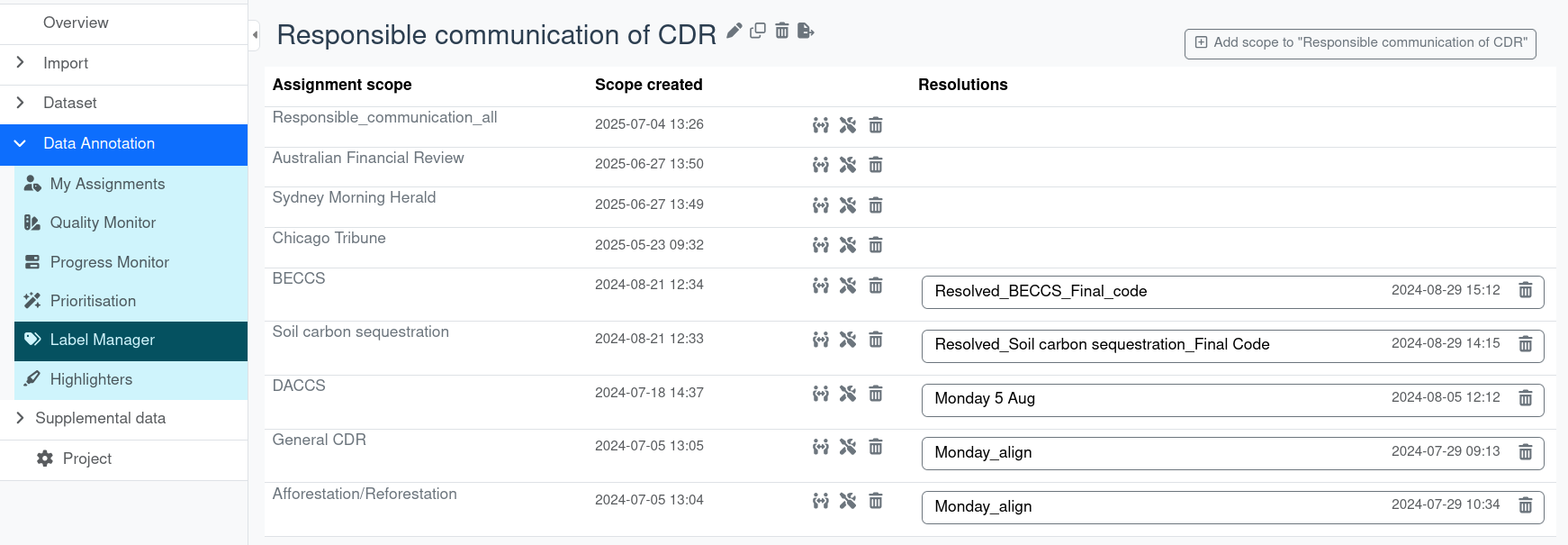
In order to view or edit an existing resolution, go to Data Annotation -> Label Manager on the main naviagtion bar. Here, you can see all assignment scopes displayed under each annotation scheme.
- In order to create a new resolution, click on the icon.
- To edit an existing resolution, click on the resolution name (e.g. Resolved_BECCS_Final_code on the screenshot).
You can, of course, create multiple resolutions of the same (partial) (sub-)set of labels if you'd like.
Resolution⚓︎
By default, the resolutions suggested by the platform follow the Majority Vote principle. The most common opinion wins. If there are ties, the winning outcome will be random.
This automatic resolver provides several options. First, you have to select an annotation scheme. Second, you can select one or more "Source assignment scopes" to indicate where to take the labels from you'd like to resolve. You can also select a (non-empty) set of users who's labels should be included ("Annotator selector"). Once you select one or more "Scheme labels to resolve", you can additionally specify how to interpret the hierarchy and priorities.
For example, if you'd like to only include the "primary labels", only keep "1" select under "Repeats to resolve". If you have a ranking of more than four, we need to adapt the interface and resolution algorithm. If you don't want/need the order, you can check the "Ignore annotation order" box. This way, all labels for that key are evaluated equally, as if they have rank=1. In case you have a nested hierarchy and would like to resolve nested labels independent of their parent label, you can check the box for "Ignore scheme hierarchy".
When clicking the "load" button, this does not save the resolution, yet. So you can experiment with the options without the platform knowing (apart from the computational overhead). For larger sets of labels, it might take a few seconds to run the resolver.
Note: At this point, we only implemented resolution for boolean, single-choice, and multi-choice types.
Reviewing and editing resolution labels⚓︎
When creating a new resolution or editing an existing resolution, you reach the Annotation resolutions screen. When creating a new resolution, clicking Load proposals displays the annotations by the different annotators and a resolution label that is pre-filled with a model prediction. It is this resolution label that needs to be changed for the resolution of disagreements.
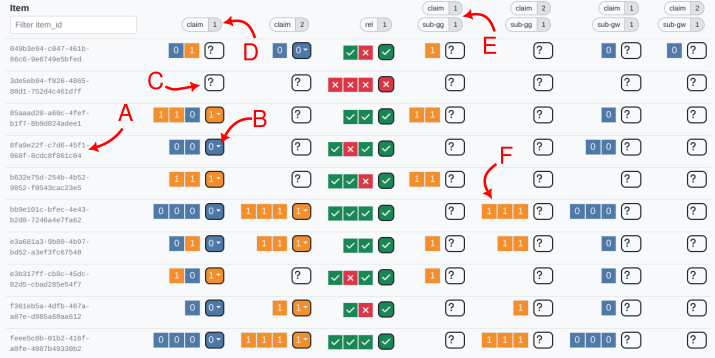
Once you loaded resolved labels, you will see a big table below the configuration box.
- (A) This is the document ID. When you click on it, a popover will open with the rendered document.
- (B) The rounded boxes show the resolved label. You can click on it and manually adjust the resolved label.
- (C) In case there are no user annotations, this box (B) will show a question mark. You can still set a resolved label manually.
- (D) Each column header represents a label indicated by the key. You can hover it to see the values and names for the available choices. The number in the pill indicates the "repeat". If you opted to ignore the order, they are all virtually set to "1".
- (E) Same as (D), but for a nested label, e.g. the child label in the annotation scheme hierarchy.
- (F) These are the user annotations. You can hover one to see by which user it was made.

In this screenshot you can see how multi-choice labels are resolved. These will, for the majority vote resolver (and probably most others) just be the set of all values that were selected by any user. You can click on the "x" of a pill to remove a value from the set or "+" to add another value.
Cells with a orange background are pointing to conflicts with the annotation scheme. For example, based on the majority vote, a sub-label was assigned that is not valid in combination with the resolved parent label.
Further notes⚓︎
The resolved labels are stored separate and independent of the user annotations as so-called BotAnnotations of type RESOLVE.
The resolvers are experimental at this point, if there are issues or there is a good reason to add other features or resolvers, they can be added.